
Data AnalyticsERP Services
Power BI to SAP BW Connectivity
Leonard Haris03 Aug 20234 min read

Power BI connects directly to SAP BW and BW4HANA as a native data source. No export step, no intermediate flat files. Here is how we set up the connection from Power BI Desktop.
Connecting
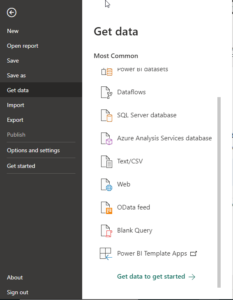
- Open Power BI Desktop and select Get Data.
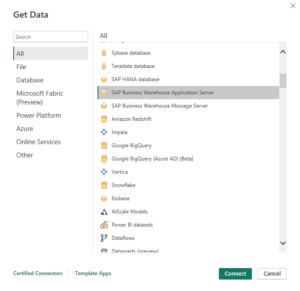
- Choose SAP Business Warehouse Application Server from the list and click Connect.
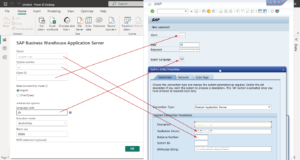
- Fill in the Server, System Number, Client ID, and Language Code from the SAP BW system's logon properties, then confirm.
- Enter the SAP user ID and password, then press Connect.
Why we default to Power BI for SAP reporting
- Interactive, personalised dashboards, down to custom visuals through Charticulator.
- Native integration with the rest of the Microsoft stack: Azure, Dynamics, 365.
- Connectivity beyond SAP: IBM, Oracle, Google, and flat formats like XML, JSON, PDF, and CSV.
- Built-in AutoML, and the ability to run Python directly inside a Power BI report.
Insights
Want this applied to your business, not just read?
Our consultants are happy to walk through how this would land in your environment.